 App Store · Official Manual
Shadowrocket Setup Guide Add a subscription and configure rules
A paid rule-based routing client for Apple platforms, purchased through the App Store as a one-time purchase. Verify the app first, then import a subscription or server details you already have.
- Shadowsocks
- VMess / VLESS
- Trojan
- Hysteria2
01 / Devices & App Store
Device and App Store access
Getting the app and importing configuration are separate steps. First purchase and install it from the App Store, then prepare a subscription URL, QR code, or server details you already have. Before purchasing, check compatibility, your current storefront, and the payment confirmation screen. See the App Store listing for system requirements and the scope of any universal purchase.
iPhone
Check the App Store listing before purchasing. When you first connect, the system may ask for permission to add a VPN configuration. Confirm that the prompt comes from the Shadowrocket app you just opened, then follow the system instructions. This permission allows a local network connection to be established; it does not confirm that server details are correct or that a subscription has been imported.
See how to get Shadowrocket and grant permission on iPhone →iPad
Check your purchase history using the Apple Account you originally used. See the App Store listing for the exact scope of a universal purchase across iPhone and iPad. App purchase records and local configuration are stored separately: after installation, check your subscription, Config, and selected item. Downloading a purchased app does not restore its configuration.
See how to get and restore Shadowrocket on iPad →Shadowrocket is also available through the same App Store on Mac and Apple TV. Check the App Store listing for compatibility, system requirements, and purchase eligibility.
Before opening the app, distinguish these three types of information
First, purchase records are kept in the Apple Account used for App Store purchases. Second, access credentials include existing subscription URLs, server authentication details, and QR codes. Third, Config determines how requests are handled. These serve different purposes and cannot replace one another. A successful subscription import usually means only that its contents were read; whether a connection works still depends on the parameters, validity, and current network.
For your first setup, import one existing item and check Type, Host, Port, and authentication fields before testing the connection. Once basic access works, adjust rules, DNS, or On Demand. This gives you a known-good baseline and makes it easier to identify whether a problem comes from imported fields, connection conditions, or a configuration change. See the getting started guide for the full sequence.
02 / Configuration Index
Shadowrocket Features and Configuration
First identify what you need to change: connection parameters, request routing, or the conditions that trigger a connection. The index on the left is organized by task. Examples show configuration syntax and how settings relate; they do not include usable server details. Do not use a snippet to replace your entire existing configuration.
Rule: from specific rules to FINAL
When Config is selected in Global Routing, the rules in the configuration determine how requests are handled. Rules are usually checked from top to bottom, and the first match determines the policy. Put specific domain and local network rules before fallback rules. Edit the active file in Config, then confirm it remains selected after saving. In the snippet below, the example domain uses PROXY, local network addresses use DIRECT, and FINAL handles all other requests. Actual results also depend on domain resolution, rule conditions, and whether the policy is available.
[Rule]
DOMAIN-SUFFIX,example.com,PROXY
IP-CIDR,192.168.0.0/16,DIRECT
FINAL,DIRECTGlobal Routing: check the current mode first
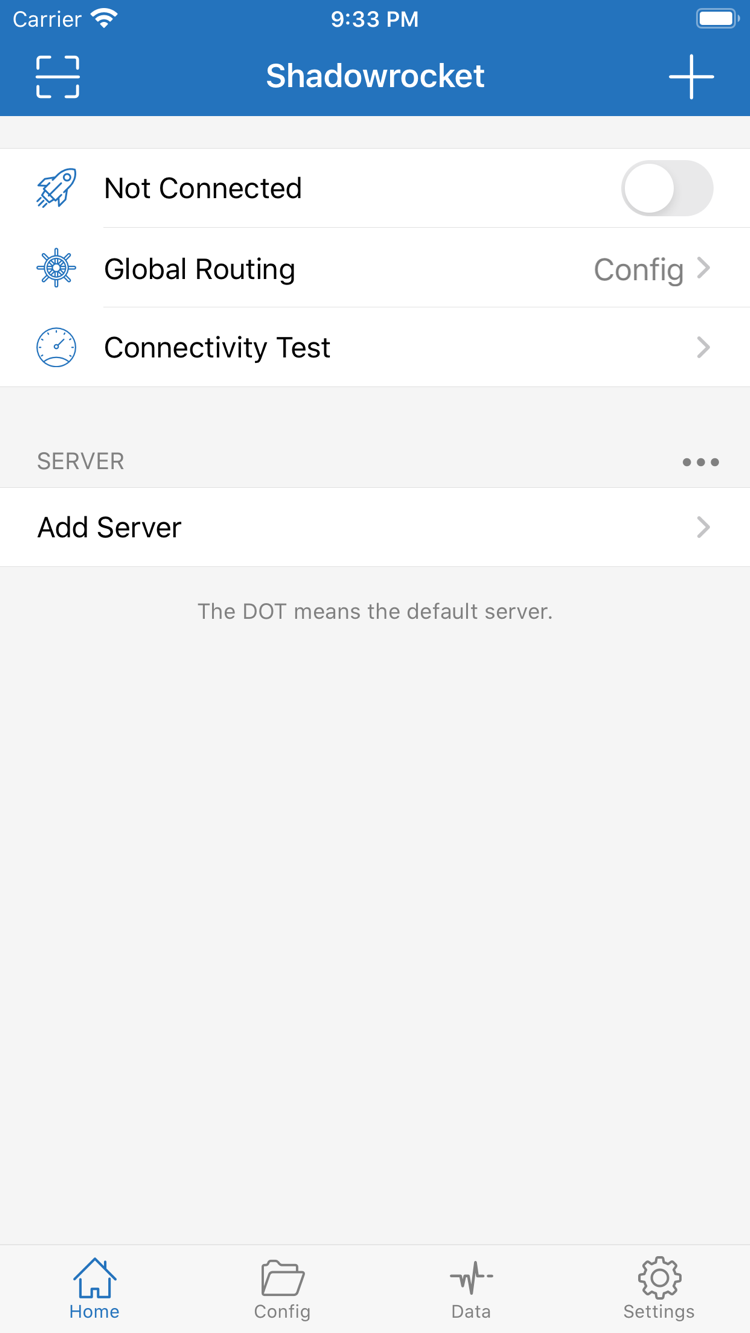
Global Routing on Home offers Config, Proxy, and Direct modes: use the configuration, route requests through a proxy, or connect directly. To use rule-based routing, select Config first, then check the active configuration and current server. When troubleshooting, you can temporarily compare the same destination across modes, changing only one setting at a time and restoring it after testing. Changing modes does not correct server authentication details or replace checking DNS and connection logs.
[Rule]
DOMAIN,example.com,DIRECT
FINAL,PROXY
This snippet shows rules used with Config; it does not change Global Routing.
Subscribe: import content you already have
Prepare a subscription URL you already have. In Add Server, select Subscribe, enter the URL, and save. To import an existing QR code, use Scan QR Code. After importing, check that the item appears and review its type and required fields, then select an item to test. Updating a subscription may change items maintained remotely, so avoid keeping important local edits only in subscription-generated entries. Subscription URLs may contain access credentials; hide the full URL and authentication details when asking for help. This guide explains how to import a subscription but does not provide or recommend subscriptions.
[General]
dns-server = system
Subscribe imports connection items; the DNS settings above belong to Config. Check them separately.
Add Server: check parameters by Type
Shadowrocket supports protocols including Shadowsocks, VMess, VLESS, Trojan, and Hysteria2. In Add Server, select Type first, then enter the Host, Port, and authentication fields using server details you already have. Required parameters vary by protocol; the transport, TLS, and server name cannot be inferred from the protocol name alone. Review each field after importing a link, and do not copy fields from one protocol to another. PROXY policies can only work when the connection item is configured correctly.
[Rule]
DOMAIN-SUFFIX,example.com,PROXY
FINAL,DIRECT
PROXY in a rule is a handling policy, not a protocol name.
On Demand: how connection conditions and rules differ
On Demand triggers connections based on configured conditions. Find its options in Settings. First test a manual connection and basic access, then adjust trigger conditions one at a time. This helps distinguish automatic connection behavior from a configuration that was not saved. On Demand controls when a connection starts; Rule controls how requests are handled while it is active. They do not replace each other. If you need to stop a connection manually or investigate network changes, check the On Demand status as well. After restoring the original conditions, see whether repeated connections continue.
[Rule]
IP-CIDR,192.168.0.0/16,DIRECT
FINAL,PROXY
This snippet shows how requests are routed; check On Demand conditions in the relevant settings.
Config: saving, selecting, and applying changes
Config manages the files that determine how requests are handled. Common sections include General and Rule. Keep a copy of the original file before editing, and change one clearly identified option at a time. After saving, check that the intended configuration is selected and that Global Routing uses it. Otherwise, the file may have changed without affecting requests as expected. Remote configuration updates may overwrite remotely managed content, so back up long-term local changes separately. This example uses system DNS and sends unmatched requests to DIRECT; that does not make it suitable for every network.
[General]
bypass-system = true
dns-server = system

[Rule]
FINAL,DIRECT
Data: check the scope and time period first
Traffic information in Data can help you observe requests handled by the client and changes in usage. Before reading the statistics, check the displayed time period and scope, then compare the results before and after one specific action. Traffic records are not the same as server-side billing and cannot, by themselves, confirm whether a destination was reached. When troubleshooting routing, review Data alongside the current rules and connection status. If you have just changed the configuration or reset the records, establish a new baseline rather than comparing data from different periods.
[Rule]
DOMAIN,example.com,DIRECT
FINAL,PROXY
Rules determine handling policies; interpret changes in statistics in light of actual requests and the reporting scope.
iCloud: keep a backup beyond syncing
Before moving to a new device, check the iCloud options in Settings and confirm your system account, available storage, and sync status. The account used for app purchases and the system iCloud account serve different purposes; a purchase record does not confirm that configuration has synced. Keep a copy of your current configuration and separately note any subscription details you will need to import again. After migration, check the active Config, existing items, and Global Routing, then test the connection. Sync is not the same as a historical backup, and accidental edits may sync too, so export an extra copy before important changes.
[General]
dns-server = system

[Rule]
FINAL,DIRECTDiagnostics: narrow down connection issues step by step
When a connection fails, first confirm that your current network is working. Then check the selected item, authentication fields, and Global Routing. Connectivity Test can provide clues; Diagnostics and Log in Settings help identify the stage where a failure occurs. A successful test does not mean every destination is reachable, and a failed test does not automatically point to a rule. Use one fixed test destination and compare connection, DNS, and rule results in sequence, changing one variable at a time. Before sharing logs, remove subscription URLs, authentication details, and other sensitive information.
[General]
dns-server = system

[Rule]
FINAL,DIRECT03 / Purchase & Verification
Verify the app and understand the purchase
Shadowrocket Guide - Official Manual is the official website and manual for Shadowrocket. Get the app only through the App Store. This section explains how to check purchase records, app identity, and connection services separately, before paying or when moving to a new device.
Check the developer, official icon, and app ID
On the product page, first confirm that the app is named Shadowrocket. Check the developer, Shadow Launch Technology Limited, and compare the icon with the official icon shown on this site. Finally, check that the product page URL contains id932747118, corresponding to app ID 932747118. Search terms or a similar name alone are not enough to verify the app; the name, icon, developer, and app ID should all match. If you are unsure about a search result, go to the product page from the app verification guide.
Shadowrocket is a closed-source commercial app. Refer to the options available in the app for feature details, and use the current App Store listing for pricing, compatibility, and purchase terms. The official icon helps verify the app but is not proof of purchase by itself. If the app is already installed, check your App Store purchase history to confirm the original purchase rather than relying on the name displayed on the Home Screen.
App Store availability and Apple Account region
App Store search results, currency, and purchase availability can vary by storefront. After opening the product page linked from this site, rely on the store details actually shown on your device. If you cannot purchase the app, check the Apple Account currently used for purchases, storefront details, and device compatibility, then review the App Store message. A missing search result does not necessarily mean the app is no longer available. Do not pay again until you have checked your purchase history.
The Apple Account used for purchases may differ from the account used for other services on your device. When troubleshooting, check the current App Store purchase account and its history instead of relying only on your iCloud account. Always refer to the App Store listing for system requirements. Its compatibility section is a better guide for purchase decisions than a device shown in a tutorial or an example of how to use the app.
One-time purchase versus connection details
Shadowrocket is a one-time purchase. The US storefront lists it at $2.99; actual pricing and purchase terms are shown on the App Store listing, with other storefronts displaying local currency. Payment grants the right to use the client; servers, subscription validity, and network connection conditions are separate. After purchasing the app, you still need to import a subscription or server details you already have to establish a connection.
Subscriptions have their own validity periods, access credentials, and maintenance methods. Updating a subscription does not change your App Store purchase record, and downloading the app again does not extend a subscription. If items appear on Home but a connection fails, check their parameters and current availability rather than purchasing the app again. Keeping these issues separate can prevent repeated steps on the wrong screen.
Purchases across devices and restoring an app
See the App Store listing for the scope of a universal purchase across iPhone and iPad. To install the app on another device, first use the original purchase account to find it in your purchase history, then download it again from there. If the store still shows a price, check the account and purchase record before confirming payment again. The state of buttons on your device may depend on the account, storefront, and compatibility; follow the App Store prompts shown to you.
Restoring the app and restoring its configuration are separate tasks. After reinstalling, check existing subscriptions, manually added servers, the active Config, and Global Routing one by one. Reimport details from your own records if needed. Restore your previous setup only after configuration checks and connection tests are complete. See the guide to restoring a purchased app. Before moving to a new device, back up your configuration first, then prepare the old device.
Update through the App Store and keep a baseline before making changes
App updates are delivered through the App Store; use your device's App Store update settings. To review changes, check the release notes on the product page and compare them with the options in your current app. This site does not list specific version numbers or update dates, so historical screens are not mistaken for the current interface. Before updating, keep copies of important Config files and any required import details. After the update, check basic connectivity first, then verify rules and automatic connection conditions you rely on.
Configuration files have their own maintenance cycle: changes to a remote file, subscription item updates, and app updates are separate events. If behavior changes, first note which one happened most recently, then compare the files and settings before and after. Keeping a tested configuration makes issues easier to reproduce than changing several options at once. For more on DNS, On Demand, or Log, see the Settings reference.
Four common questions before you get started
Why check the connection after importing successfully?
A successful import means the app has read the content; it does not confirm that server authentication, transport conditions, and the current network have all been verified. Select an existing item on Home, check Global Routing, and test a specific destination. Checking “content saved” separately from “connection works” usually makes issues easier to find than repeatedly deleting and reimporting. See the getting started guide for the steps.
Why didn't requests change after editing Rule?
First confirm that the changes were saved, the file is the active Config, and Global Routing is set to Config. Then check whether an earlier rule already matches the destination, especially the position of specific domain rules relative to FINAL. It is not enough for a rule to exist; it must be reached during matching. See the glossary for keyword definitions.
Can Connectivity Test results replace a real-world access test?
No. A test and a real request may follow different processing paths, so the result is a clue, not a guarantee that every destination is accessible. When troubleshooting, note the test method, selected item, Global Routing mode, and destination, then use Diagnostics and Log to identify where the failure occurred. See Frequently Asked Questions for more step-by-step checks.
What should I protect when backing up configuration?
Subscription URLs, server authentication fields, and some log entries may contain access credentials. Store exports somewhere you control, and remove sensitive details before sharing screenshots or configuration snippets. Label backups with their purpose so example snippets are not mistaken for complete files that can be restored as-is. See configuration backup and device migration for the migration steps.
Choose a guide based on the task: use the getting started guide to add an item and connect for the first time; look up interface terms and rule keywords in the glossary; consult the settings reference when you are already connected and want to change how things work. Keeping each task focused makes it easier to preserve settings you can restore if needed.
04 / Articles
Configuration, migration, and purchase guides
The articles below cover purchase recovery, rule-blocking behavior, and configuration migration. Start with basic import and connection checks, then choose the article that fits your task. Before editing files, keep the original configuration and retest the same destination after each change.
Restore your Shadowrocket purchase after reinstalling: redownload from App Store purchase history
When switching to a new device or reinstalling the app, use the original Apple Account to find the purchase, then download Shadowrocket again. This article explains the difference between the purchase account and the system account, what to check if the App Store still shows a price, and why subscriptions and local configuration need to be checked after restoring the app.
How to write Shadowrocket REJECT rules: blocking behavior, match order, and limitations
Learn how REJECT works during rule matching, where to place specific domain rules, and why an earlier match can change the result. The guide also explains the limits when target content shares a domain with legitimate services. Blocking requests by domain does not distinguish every type of content on a page.
Back up and migrate Shadowrocket configuration: iCloud sync, configuration exports, and restore steps
Follow the process before migration, during restoration, and after verifying the setup. Learn the differences between iCloud sync, manual exports, and reimporting an existing subscription. The guide covers checks for the active Config, Global Routing, and local changes, and explains why important configurations should also be saved separately from sync.